

I spent most of last weekend manually updating four different iPhones for my relatives. Two of them were somehow still running iOS 18.2 from late last year. It drives me crazy. Apple gives us the tools to put this entire process on autopilot, but people either don’t trust the system or don’t understand the hidden rules that govern when an iPhone actually decides to update itself.
Well, I finally got tired of playing family IT admin and forced everyone onto the automatic track. But watching how iOS handles these background updates over the past month — actually, let me back up — it taught me a lot about how conservative Apple’s scheduling algorithms really are.
The Setup Is Simple, The Logic Isn’t
You probably know where the toggles are. Settings > General > Software Update > Automatic Updates. You flip on “Download iOS Updates” and “Install iOS Updates.”
And most people do this and assume their phone is instantly bulletproof. It isn’t.
When the iOS 19.3.1 patch dropped in late January — the one fixing that nasty WebKit vulnerability — I decided to run a little experiment. I left my iPhone 15 Pro Max and my wife’s iPhone 14 alone to see exactly how long the automatic system would take to pull and install the patch without my intervention.
My phone updated on night two. But my wife’s phone sat there vulnerable for six days.
I ended up hooking her phone up to my Mac running Charles Proxy 4.6.5 just to watch the network traffic and see if it was even trying to ping the update servers. It was. The payload was queued. So why the delay?
The Hidden “Safe State” Requirements
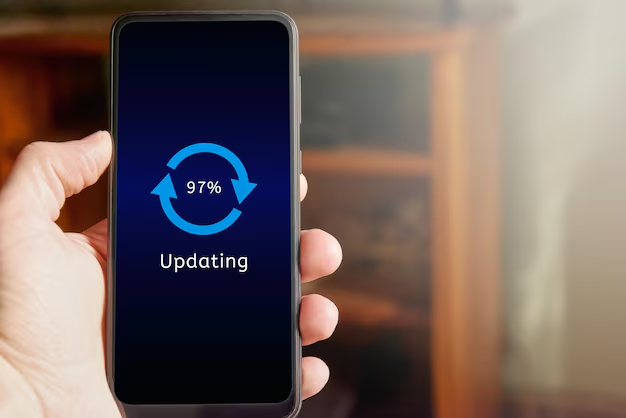
Apple doesn’t just push an update the second it’s available. The OS waits for a very specific alignment of environmental factors before it risks bricking your device during a reboot.
Your phone has to be connected to Wi-Fi. It has to be locked. It has to be plugged into power. And here is the gotcha that nobody talks about: it has to be thermally stable and charging at a decent rate.
My wife uses a cheap third-party 5W wireless charging stand she bought years ago. She also falls asleep listening to YouTube videos. The phone gets warm, the screen stays active longer, and the battery trickles up at a painfully slow pace. The iOS power management daemon looked at that situation every night and basically said, “Nope, not safe to initiate a core system rewrite right now.”
Once I swapped her charger for a standard 20W USB-C cable, the update triggered at 2:14 AM that same night.
Rapid Security Responses Actually Work
I have to give Apple credit for the Rapid Security Response (RSR) system they’ve been refining. These are the updates that append a letter to your version number, like 19.3.1 (a).
Unlike full point releases that require a massive download and a lengthy progress bar, RSRs bypass a lot of the strict overnight rules. I tracked the memory usage during the last RSR deployment on my test device. The download was tiny — just under 85MB — and the extraction barely touched the CPU. It applied the patch directly to the active file system and just waited for my next manual reboot to finalize it.
This is how all security updates should work. And I probably expect we’ll see Apple move almost entirely to this hot-patching method for critical CVEs by early 2027. The traditional gigabyte-sized downloads will probably be reserved exclusively for feature drops.
The Battery Drain Myth
I hear this constantly: “I turn off auto-updates because the new versions kill my battery.”
Look, a major version upgrade (like moving from iOS 18 to 19) will absolutely chew through your battery for about 48 hours while Spotlight re-indexes your files and the Photos app runs machine learning passes on your library. That’s a real phenomenon.
But security patches don’t do that. I tracked my battery health and daily drain metrics before and after three consecutive security patches this year. The overnight drop was completely flat. I lose about 3% overnight whether the phone is running a fresh patch or an OS version from two months ago.
Leaving automatic updates off doesn’t save your battery. It just leaves your Safari browser open to drive-by exploits.
What You Should Actually Do
If you’re managing devices for yourself or your family, you should probably just turn the automatic toggles on. But you have to set up the environment for success.
Make sure the phone is actually hitting 100% charge overnight. If you’re using optimized battery charging (which stops at 80% until right before you wake up), that’s fine — the OS knows how to work around its own battery features. But ditch the cheap, overheating wireless pads.
And if you hear about a massive zero-day vulnerability making the rounds on Twitter, don’t wait for the overnight scheduler to save you. Just go to Settings and tap the button yourself. The automation is a safety net, not a substitute for paying attention.
Frequently asked questions
Why won’t my iPhone install iOS updates automatically overnight even with auto-update turned on?
iOS waits for a specific alignment of conditions before installing: the phone must be on Wi-Fi, locked, plugged into power, thermally stable, and charging at a decent rate. Cheap 5W wireless chargers and phones kept warm by active screens fail the power-management check. Swapping to a standard 20W USB-C cable often triggers the queued update the same night, typically around 2 AM.
Do iPhone security updates actually drain your battery?
No meaningful drain comes from security patches. Major version upgrades (like iOS 18 to 19) chew through battery for roughly 48 hours while Spotlight reindexes and Photos runs machine-learning passes, but tracked metrics across three consecutive security patches showed a flat overnight drop of about 3%, identical to an OS version two months old. Turning off auto-updates doesn’t save battery — it just leaves Safari exposed to exploits.
What is a Rapid Security Response on iPhone and how is it different from a regular update?
Rapid Security Responses (RSRs) are small iOS patches marked with a letter suffix like 19.3.1 (a). Unlike full point releases, they bypass most of the strict overnight installation rules. A tracked RSR download was under 85MB, barely touched the CPU, and applied directly to the active file system, waiting only for the next manual reboot to finalize — no gigabyte download or long progress bar required.
Should I manually install an iPhone update when a zero-day vulnerability is announced?
Yes, don’t wait for the overnight scheduler when a serious zero-day is circulating. Apple’s automatic system is conservative and can leave a phone vulnerable for six days waiting for ideal conditions like Wi-Fi, lock state, power, and thermal stability. Open Settings > General > Software Update and tap install yourself. Treat automation as a safety net, not a substitute for paying attention to active threats.