
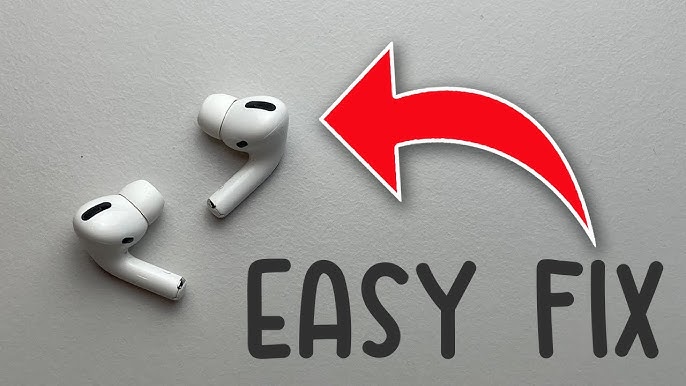
I was three hours deep into debugging a nasty race condition in a Go microservice, completely in the zone, when my left AirPod started sounding like a Geiger counter next to a uranium rod. If you rely on audio isolation to maintain your flow state, you already know how infuriating this is. You aren’t here for a philosophical debate about wireless audio; you want to know exactly how to fix airpods pro crackling noise so you can get back to work.
As a developer who spends half my life inside the Apple ecosystem and the other half digging through system logs, I wasn’t about to just “forget the device and reconnect.” I wanted to know the root cause. The crackling, popping, or static noise in AirPods Pro isn’t just bad luck—it’s a measurable failure in either the hardware acoustic loop, the Bluetooth transmission layer, or the CoreAudio buffer processing.
In this guide, I’m going to walk you through the actual mechanics of why this happens and give you a definitive, technical step-by-step process to permanently resolve it. We’ll look at Bluetooth packet drops, firmware anomalies, and hardware degradation.
The Root Cause: Why Your AirPods Pro Sound Like a Bowl of Rice Krispies
Before we start fixing things, you need to understand the architecture of the hardware you have jammed in your ears. The AirPods Pro (both 1st and 2nd generation) rely on Apple’s H1 or H2 silicon to process Active Noise Cancellation (ANC) and Transparency modes at hundreds of times per second.
ANC works by utilizing an outward-facing microphone to detect environmental noise, and an inward-facing microphone to listen to what your ear is actually hearing. The chip then generates an inverted phase waveform to cancel out the external noise. This is a highly sensitive feedback loop. If the outward microphone gets clogged with debris, or if the Bluetooth buffer drops a frame, the phase inversion fails. Instead of anti-noise, the chip injects raw, uncalibrated static directly into your ear canal.
This issue has been a recurring theme in AirPods Pro news and iOS updates news. Apple even had to launch a worldwide service program for units manufactured before October 2020 because the acoustic mesh was physically coming loose, causing a mechanical rattle that the microphone picked up and amplified.
Step 1: Diagnose macOS Bluetooth Packet Drops
If you are experiencing the crackling while connected to a Mac (a common scenario for developers), the problem might not be the AirPods themselves. It might be your Mac’s Bluetooth stack struggling under load, leading to buffer underruns.
When the CPU is pegged—perhaps you’re running Docker, indexing a large Xcode project, and have 50 Chrome tabs open—macOS can deprioritize the Bluetooth daemon (bluetoothd). When audio packets are dropped, the AirPods’ digital-to-analog converter (DAC) has no data to play, resulting in a sharp pop or crackle.
Let’s verify if your Mac is dropping packets. Open your terminal and use the native log command to stream Bluetooth subsystem errors in real-time:
# Stream macOS Bluetooth logs to check for HCI packet errors
log stream --predicate 'subsystem == "com.apple.bluetooth" and level == error' --info
Put your AirPods in and play some audio. If you see a flood of kBluetoothHCIError or L2CAP timeout messages exactly when you hear the crackle, your Mac is the bottleneck. To fix this, you can force macOS to reset its core Bluetooth module without rebooting your machine:
# Restart the bluetooth daemon (requires sudo)
sudo pkill bluetoothd
This forces the daemon to restart and re-establish the handshake with your AirPods, often negotiating a cleaner channel and resolving software-induced static.
Step 2: The CoreAudio Buffer Underrun Problem
Sometimes the crackling isn’t a Bluetooth transmission issue, but an audio buffer issue at the OS level. As developers, we interact with these buffers via APIs like AVAudioSession on iOS or CoreAudio on macOS. When an application requests an extremely low buffer duration for low-latency audio (common in video editing tools or DAWs like Logic Pro), any CPU spike will cause the system to miss the buffer deadline.
Here is a Swift snippet illustrating how apps configure this, which often inadvertently causes the exact crackling you are hearing:
import AVFoundation

func configureAudioSession() {
    let session = AVAudioSession.sharedInstance()
    do {
        // App requests a highly aggressive 5ms buffer for low latency
        try session.setPreferredIOBufferDuration(0.005)
        try session.setCategory(.playAndRecord, mode: .measurement, options: .allowBluetoothA2DP)
        try session.setActive(true)
    } catch {
        print("Failed to set audio session category. Error: \(error.localizedDescription)")
    }
}
If you are using an app that forces a tiny buffer, your AirPods Pro will crackle. The fix? Go into the preferences of the specific app you are using (like Ableton, Premiere, or even Discord) and increase the audio buffer size to at least 256 or 512 samples. This gives the CPU enough breathing room to process the audio frames before sending them over the air.
Step 3: Firmware Verification and Forced Updates
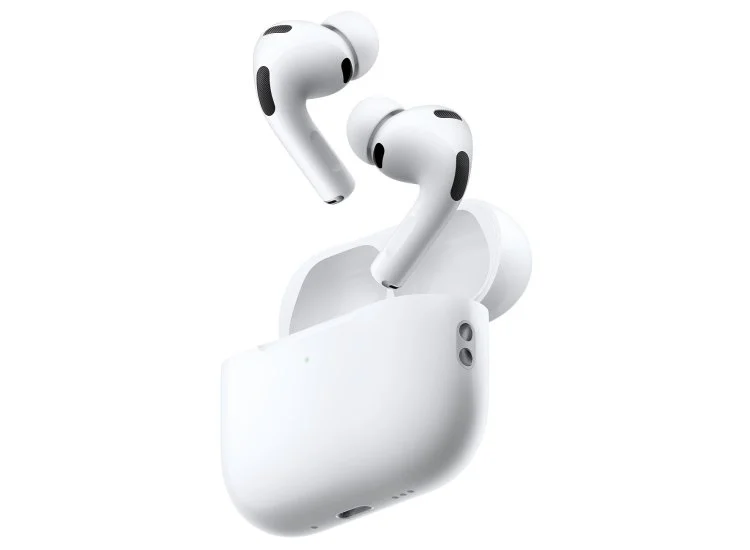
Apple handles AirPods firmware updates in the background. You cannot click a button to update them. This “magic” Apple ecosystem news feature is great until a botched firmware version causes widespread ANC feedback loops.
You need to verify what firmware your AirPods are running. While you can dig through the iOS Settings app, I prefer pulling the raw data from my Mac using system_profiler to ensure I’m getting the actual reported state of the hardware.
Run this bash script to extract your connected AirPods’ firmware version:
#!/bin/bash
# Extract AirPods firmware version via system_profiler

system_profiler SPBluetoothDataType -json | grep -A 10 "AirPods Pro" | grep "firmware_version"
Check the output against the latest firmware version listed on Apple’s official support page. If you are behind, you have to force the update. Here is the most reliable method to trigger Apple’s invisible update mechanism:
- Put your AirPods Pro in their charging case.
- Plug the case into a power source (Lightning or USB-C, depending on your model).
- Ensure your paired iPhone or iPad is connected to Wi-Fi and placed within physical contact of the case.
- Leave them completely alone for 30 minutes. Do not open the case.
This specific state—charging, near the host device, and idle—is the required trigger for the iOS daemon to push the binary payload to the H1/H2 chip.
Step 4: Fixing the Physical Layer (Microphone Mesh Blockage)
If you’ve ruled out Bluetooth logs and firmware bugs, we have to look at the physical hardware. The most common reason people search for how to fix airpods pro crackling noise is directly related to the ANC acoustic loop failing due to blocked microphones.
Take a close look at the black mesh grilles on the outside of your AirPods Pro. These are the environmental microphones. If earwax, dead skin, sweat, or dust blocks even 10% of this mesh, the microphone’s input frequency response is altered. The ANC algorithm, assuming a clean signal, applies an incorrect anti-noise filter, resulting in a high-pitched squeal or a crackling static sound.
Do NOT use compressed air. The acoustic transducer behind that mesh is incredibly fragile. High-pressure air will permanently destroy the microphone.
The Developer’s Physical Debugging Toolkit:
- Mounting Putty (Blu-Tack): Press a piece of clean Blu-Tack gently into the black mesh and pull it away. It will grab microscopic debris that brushes miss. Repeat this 4-5 times until the putty comes away completely clean.
- Isopropyl Alcohol (99%): Lightly dampen a microfiber cloth (not a cotton swab, which leaves lint) with 99% isopropyl alcohol. Gently wipe the mesh to dissolve skin oils. 99% evaporates instantly, preventing liquid damage to the internals.
Once cleaned, put them back in your ears and toggle between ANC and Transparency mode. If the crackling stops, you’ve successfully restored the integrity of the acoustic feedback loop.
Step 5: Hunt Down 2.4GHz Interference
Bluetooth operates on the 2.4GHz ISM band, sharing airspace with Wi-Fi routers, microwaves, wireless peripherals, and basically every IoT smart home device on the market. If you are working in a dense apartment building or a heavily equipped office, the radio frequency (RF) noise floor might be too high, causing packet collisions.
To verify if RF interference is causing your crackling, we can write a quick Python script using the bleak library to scan for Bluetooth Low Energy (BLE) devices and measure the Received Signal Strength Indicator (RSSI) of the surrounding environment.
import asyncio
from bleak import BleakScanner

async def scan_interference():
    print("Scanning 2.4GHz Bluetooth airspace...")
    devices = await BleakScanner.discover()

    high_interference_count = 0

    for d in devices:
        # RSSI > -60 dBm indicates a very strong signal nearby
        if d.rssi > -60:
            high_interference_count += 1
            print(f"Strong Signal Detected: {d.name or 'Unknown'} | RSSI: {d.rssi} dBm")

    if high_interference_count > 5:
        print("\nWARNING: High RF interference detected. This will cause AirPods crackling.")
    else:
        print("\nAirspace looks relatively clean.")

if __name__ == "__main__":
    asyncio.run(scan_interference())
If you run this and see a dozen devices blasting signals at -40 dBm or -50 dBm, your AirPods are fighting a losing battle for bandwidth. The fix? Move your Wi-Fi router to a 5GHz-only band if possible, or physically distance yourself from USB 3.0 hubs, which are notorious for emitting broadband noise in the 2.4GHz spectrum.
Step 6: The Apple Ecosystem Auto-Switching Bug
If you follow iPhone news or iPad news, you know Apple heavily markets their seamless device switching. Your AirPods are supposed to magically switch from your Mac to your iPhone when a call comes in. In practice, this feature is a chaotic mess of concurrent Bluetooth handshakes.
When multiple devices (your MacBook, your iPad, your Apple TV) are all polling the AirPods simultaneously, the H1/H2 chip can panic. This rapid context switching drops the audio stream momentarily, creating a loud popping sound.
To fix this, you need to disable automatic switching across your Apple ecosystem:
- On your iPhone/iPad: Go to Settings > Bluetooth, tap the “i” next to your AirPods Pro, and change Connect to This iPhone from “Automatically” to “When Last Connected to This iPhone”.
- On your Mac: Go to System Settings > Bluetooth, click the “i” next to your AirPods, and apply the same setting.
- If you own an Apple TV, check the latest Apple TV marketing news for updates, but manually disable the auto-join feature in the tvOS Bluetooth settings as well.
By forcing the AirPods to maintain a single, dedicated connection, you eliminate the multipoint polling overhead, which drastically reduces audio artifacts.
Step 7: The Last Resort – The Apple Service Program
If you have cleared the Bluetooth logs, verified the core audio buffers, cleaned the mic mesh with putty, and eliminated 2.4GHz interference, and you are still searching for how to fix airpods pro crackling noise, you likely have a dead hardware unit.
Apple acknowledged a manufacturing defect in a specific batch of AirPods Pro (1st Generation). The acoustic mesh covering the microphone wasn’t glued properly. Over time, bass frequencies or the physical motion of walking causes the mesh to vibrate against the plastic housing. The ANC microphone picks up this vibration, assumes it is external noise, and amplifies it directly into your ear as a harsh crackle.
No software update, iOS updates news, or clever terminal hack can fix physical hardware decoupling. You need to visit an Apple Store. Be explicit with the Genius Bar technician: tell them the unit fails the audio diagnostic test due to the known ANC feedback loop issue. If your unit was manufactured before October 2020, they will usually replace the faulty buds (though not the charging case) entirely for free, regardless of your AppleCare status.
Preparing for the Future of Apple Audio
As we look toward the future, with Apple AR news and Vision Pro accessories news dominating the headlines, the reliance on perfectly synchronized, latency-free audio is only going to increase. The Apple Vision Pro uses audio ray tracing to map your room, demanding even more from wireless audio protocols. If your AirPods Pro are crackling now, they will severely degrade spatial computing experiences later.
Understanding the layers of this ecosystem—from the macOS Bluetooth stack to the physical acoustic properties of the earbuds—makes you a better power user and a much less frustrated developer. Don’t settle for bad audio.
FAQ: How to Fix AirPods Pro Crackling Noise
Can a software update fix AirPods Pro crackling?
Yes, if the crackling is caused by a Bluetooth stack bug or a poorly calibrated Active Noise Cancellation algorithm. Apple frequently pushes silent firmware updates to the AirPods Pro that optimize the DSP (Digital Signal Processor). Keep your AirPods near your paired, Wi-Fi-connected iPhone while charging to ensure they download the latest patch.
Why does my AirPod Pro only crackle when I move my head?
Crackling that triggers specifically with physical movement usually indicates a hardware defect where the internal acoustic mesh or microphone has come loose. Walking, chewing, or turning your head causes the loose component to vibrate. The ANC system detects this internal vibration and attempts to cancel it out, resulting in a loud static pop.
Is the AirPods Pro crackling dangerous to my hearing?
While extremely annoying, the crackling is limited by the maximum output of the AirPods’ internal amplifier, which is capped at safe decibel levels by iOS health limiters. However, prolonged exposure to sharp, unexpected high-frequency static can cause listening fatigue and headaches, so you should resolve the issue immediately.
Does Apple replace crackling AirPods for free?
Apple will replace them for free if your AirPods Pro (1st generation) were manufactured before October 2020 and fail their internal audio diagnostic test, as they fall under an official Service Program. For newer models or 2nd generation units out of warranty, you will likely have to pay the standard out-of-warranty replacement fee for the affected earbud.
Conclusion
Figuring out how to fix airpods pro crackling noise comes down to systematically isolating the failure point. As developers, we know that bugs rarely exist in a vacuum. Start by checking your macOS Bluetooth logs and adjusting your CoreAudio buffer sizes to rule out software latency. Next, clean the environmental microphone meshes with mounting putty to restore the ANC feedback loop. Finally, disable automatic device switching to prevent multipoint polling conflicts. If all these technical interventions fail, you have proven beyond a doubt that the hardware itself is defective, and it’s time to leverage Apple’s replacement program. Don’t let a failing H1 chip ruin your flow state—debug the hardware, apply the fix, and get back to writing code.